
Short answer: a google maps scraping setup takes four moves in one sitting. Create a free account, install the Chrome extension and pin it, sign in so the extension talks to the dashboard, then run one Maps search and export the file. No code, no proxy list, no paid plan for the first run.
I set up my first Maps scraper the slow way. I installed the extension first, ran a search, then hunted for the export and found nothing. I had skipped the account step, so nothing had anywhere to land. My order was wrong.
This post walks the setup in the order that works: account, install, connect, search, read the export. Once your setup runs clean, the next post in line is our full guide to extracting leads from Google Maps.
What does a google maps scraping setup actually include?
A setup has four parts, and each one does a different job. The account holds your credits and your saved lists. The extension reads the Maps results page and turns listings into rows. The dashboard stores those rows, runs the website crawl that finds emails, and checks each address before export.
One part people miss at setup time is the website crawl. A Maps listing shows no email address. The email work happens after the capture, when the tool visits each business website and reads addresses the business publishes. GoLeads Pro crawls business websites for emails and social profiles, per the vendor, and it MX-verifies emails before export, per the vendor.
Do you need code, proxies, or a paid plan to start?
No code. The extension plus dashboard path needs no coding, no API keys, and no setup files. The code-first guides that rank for this topic ask you to install Python, install Playwright, and write a script, then keep CSS selectors working as Google changes them. ScrapeHero states its own code path breaks when Google changes class names.
No proxy list either. GoLeads Pro states on its extension page that its cloud setup handles rotation and rate limits, per the vendor.
No paid plan for the first run. GoLeads Pro Professional costs $10 a month for 50,000 leads, and Business costs $20 a month for 100,000 leads and includes API access and webhooks, per the vendor. Zapier and Make sit on higher tiers, per the vendor. No native connector is claimed for any CRM, BI, or automation tool.
Step 1: Create your account before you install anything
I start with the account now, every time. The extension page lays the order out plainly: sign up free first, then install the extension, then pin it and sign in to sync. The extension needs an account to send captures to.
Open the GoLeads Pro site and create a free account with your work email. The free tier I work from gives 100 free credits on signup, with no credit card, per the extension page I read on 8 November 2026. The pricing page states the same free tier as 50 leads a day and 300 total, so the two pages word it differently; work from the 100 credits you see at signup.
Step 2: Install the extension and pin it
With the account made, install the extension on a desktop or laptop. The extension page states you can install from the Chrome Web Store or download the package directly, and that it runs on Chrome, Edge, Brave, and other Chromium browsers, per the vendor.
Google's install guide describes the store flow in four moves: open the Chrome Web Store, find the extension, select Add to Chrome, then select Add extension on the permissions prompt. Google's guide adds one warning: approve only extensions you trust.
Pin the icon next. If it is not beside the address bar, open the extensions menu, the puzzle icon, and pin GoLeads Pro. Two blocks can stop an install before it starts. Google's guide states you cannot add extensions in Incognito mode or as a guest, and a work or school PC may block some extensions. If the Add to Chrome button does nothing, check those two points first. Our extension guide covers the same install in more depth.
Step 3: Connect the extension to your dashboard
Install alone does not finish the setup. Sign in to the extension with the account you just made, so captures sync to the dashboard. The extension page states it plainly: sign in to sync your 100 free credits.
Open the dashboard in a tab and look at it before you run anything. You want to know where captures land, where the credit balance sits, and where the export button lives, while nothing is at stake. If the dashboard shows zero credits after sign-in, sign out and sign in again with the same account.
Step 4: Pick one trade and one town
Decide the market before you open Maps. One trade, one town, one search. Say you search dentists in Miami. That is one clear market, and you can read the whole export in one sitting. A search across a whole state returns a pile you cannot read.
Write the search down before you type it. Trade plus town, in plain words, the way a customer would type it. Then add one filter you can defend. I use a rating floor of 4.0 stars for offers aimed at firms that guard their reputation, and a website filter when I need emails.
Step 5: Run your first search and scroll to the end
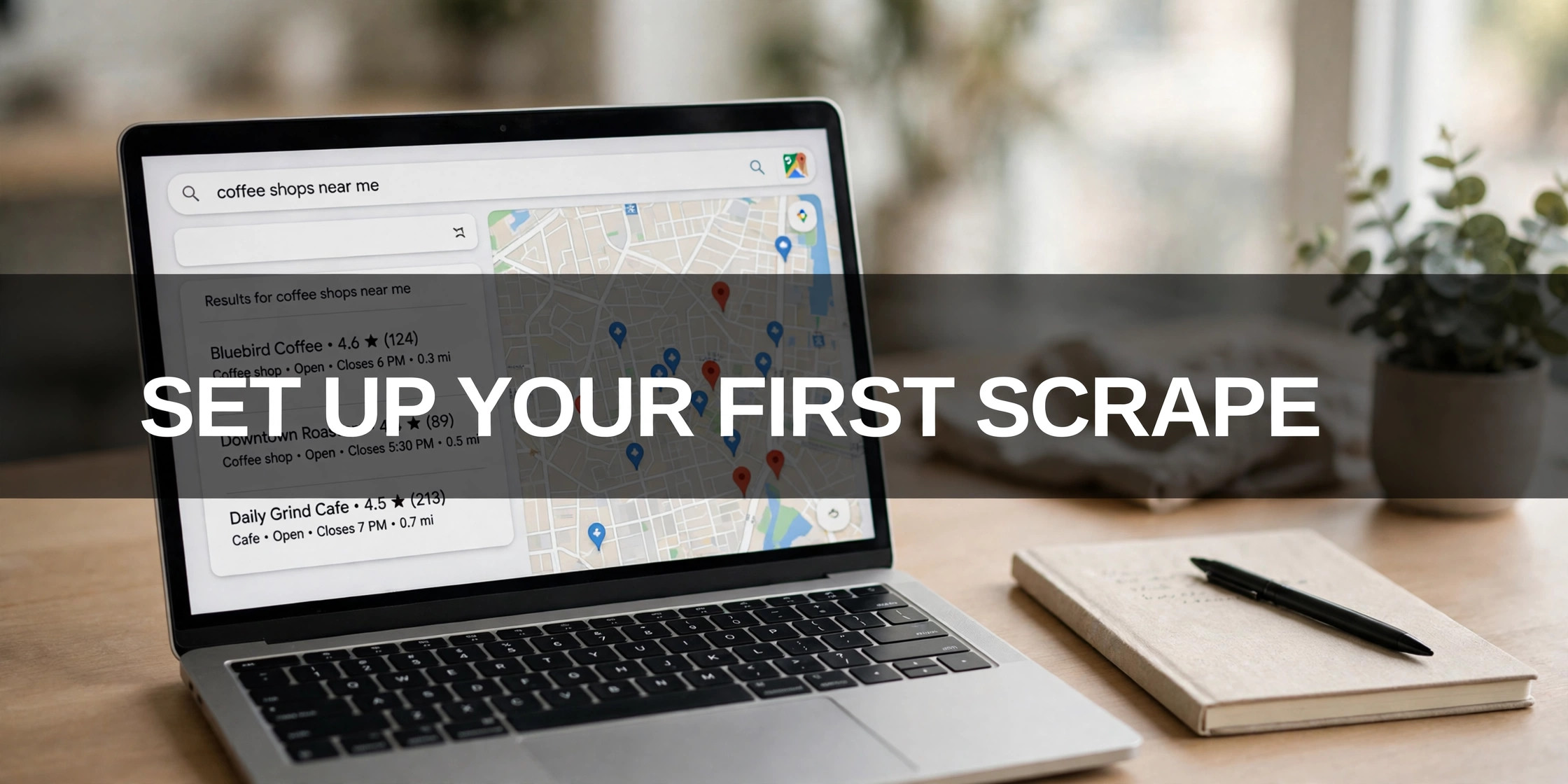
Open Google Maps in the same browser profile where you installed the extension, and run the search you wrote down. Maps loads listings in batches as you scroll, and the extension reads only what has already loaded.
Scroll the results panel to the end before you start the run, and watch it until it stops adding listings. That scroll takes a short while and saves a second run. A short file usually means a short scroll, not a broken tool. Our troubleshooting guide covers the empty-result case in full.
One search tops out near 120 results, a cap LeadsMap and Scrap.io both state on their pages. Split a large area into one search per neighborhood or ZIP code.
Step 6: Start the run and watch the rows land
Click the extension icon while the results panel is open, and start the run. The extension page uses two wordings for this move, Start Scraping in the steps and Extract Leads in the install list, so follow the icon and the popup in front of you.
Keep the tab open while it works. The extension runs in your browser, not in the cloud, so shutting the laptop stops the job. Watch the first rows land before you walk away.
Let the second pass run after the capture. The website crawl visits each business site and reads published emails and social profiles, and each email passes an MX check before export, per the vendor. Do not export mid-crawl and then wonder where the emails went.
How do you read your first export?
Open the export in a sheet and read ten rows by eye against the live listings. One row stands for one business. Check the name, the phone, and the website against the listing before you trust the rest.
| Field | Source | What you do with it |
|---|---|---|
| Business name | Maps listing | Mail and calls |
| Category | Maps listing | Sort by trade |
| Street address | Maps listing | Mail and territories |
| Phone number | Maps listing, checked | Call the business |
| Website | Maps listing | Site audits |
| Star rating | Maps listing | Filter for quality |
| Review count | Maps listing | Judge staying power |
| Email address | Business website, MX-checked | Cold email |
| Social profiles | Business website | Outreach research |
Read the gaps before you read the rows. A blank email slot means the crawl found no published address on that site, or the business has no site at all. That business may still take a call, and the phone number is the field I fall back on. A row with no phone and no website gets cut. Never fill a blank slot with a guessed address.
Your first-hour setup scorecard
Score your own setup against this card before you call it done. A setup that passes all six lines is ready for real searches.
| Check | Pass looks like | Fail looks like |
|---|---|---|
| Account | One account, signed in, credits visible | Two accounts, or zero credits |
| Install | Icon pinned beside the address bar | Icon hidden, or install blocked |
| Connect | Capture lands in the dashboard | Rows nowhere after a run |
| Search | One trade, one town, written down | A whole state in one search |
| Scroll | Panel scrolled to the end first | Run started too early |
| Export | Ten rows read by eye, format picked | File downloaded, never opened |

A worked example: dentists in Miami, from signup to export
Say you search dentists in Miami for a first run. You create a free account, install the extension in Chrome, pin the icon, and sign in. You type dentists in Miami into Maps and scroll the results panel to the end. You start the run, let the crawl and the MX checks finish, then export the file as CSV.
Open the CSV and read ten rows by eye. Split the file into three piles: rows with an email, rows with a phone and no email, and rows with neither. The first pile goes to your sending file. The second pile goes to your call list. The third pile gets cut.
The setup mistakes that waste your first hour
I made each mistake below at least once. Each fix takes less time than the mistake cost me.
Mistake one: I installed before I made an account
The fix is the order in this post. Account first, install second, sign in third.
Mistake two: I ran a search across a whole state
The fix is one trade in one town. A wide search burns credits on firms you will never call.
Mistake three: I started the run before the panel finished loading
The fix is the scroll. Maps loads listings in batches, and the extension reads only what has loaded.
Mistake four: I exported before the email crawl finished
The fix is patience with the second pass. The crawl and the MX checks run after the capture, and an early export holds names with no emails.
Mistake five: I used a second browser profile by accident
The fix is one profile, one account, one dashboard. A capture in a second profile lands in a second account.
Mistake six: I trusted the row count and never read a row
The fix is ten rows by eye. Read the name, the phone, and the website against the live listing.
Copy this checklist before your first run
- Free account created with your work email, and signed in.
- Extension installed on a desktop browser and pinned.
- Extension signed in to the same account as the dashboard.
- Credit balance checked before the run.
- One trade and one town written down, with one filter.
- Results panel scrolled to the end, last batch loaded.
- Run started, first rows watched as they land.
- Website crawl and MX checks finished before export.
- Export format picked, CSV for sheets or XLSX for Excel.
- Ten rows read by eye against the live listings.
- File tagged with the search, the date, and the row count.
Share this line with your team: setup is account first, install second, and one small search before any big one.
Frequently asked questions
What is a google maps scraping setup?
A google maps scraping setup is the account, the browser extension, the dashboard link, and the first search, put together in working order. You create a free account, install the extension, sign in so captures sync to the dashboard, run one Maps search, and export the file.
Do I need coding skills to set up a Google Maps scraper?
No. An extension plus dashboard setup needs no code, no API keys, and no setup files. You install the extension, sign in, run a Maps search, and export. Code paths exist, and they ask for Python and Playwright plus upkeep as Google changes its page layout.
How long does a Google Maps scraping setup take?
One sitting covers it when you follow the order in this post. Account, install, pin, sign in, one search, one export. The scroll and the email crawl take the longest. A setup that drags past an hour means one step ran out of order.
Can I set up a Google Maps scraper on a phone?
Run the first setup on a desktop or laptop. Google documents extension install for desktop Chrome, and the extension icon sits beside the address bar on a desktop browser. A phone screen makes the scroll, the filters, and the export review harder.
Why does my setup return zero results?
Check the scroll first. Maps loads listings in batches, and the extension reads only what has already loaded, so a run started on a half-loaded panel returns a short file or nothing at all. Next check the search words and the browser profile.
How many leads can I pull on a free setup?
The free tier I work from gives 100 free credits on signup, with no credit card, per the extension page. The pricing page states the same free tier as 50 leads a day and 300 total, so the two pages word it differently; work from the 100 credits you see at signup.
Does the setup include email addresses?
The setup includes emails only through the website crawl that runs after the capture. Maps listings show no email addresses, so no tool pulls them from the listing itself. GoLeads Pro visits each business website and reads addresses the business publishes, then runs an MX check on each address before export, per the vendor.
Is scraping Google Maps legal?
Collecting public business data sits in a gray area, so read our legality guide before you scale. US courts have held that collecting data anyone can view does not breach the federal hacking law, while Google terms still bar automated access, so a terms breach can cost you account action.
Open one Maps search today. Create a free GoLeads Pro account, run the extraction on a trade you sell to, and hold the export against the checklist above.