
I export my own Google Business Profile data from Business Profile Manager: location details download as a spreadsheet, and performance data downloads as a report. Reviews take a longer route through Takeout or the API. Competitor listings work differently. Google offers no export for profiles I do not own, so public listing data has to come from a scraper.
What can I export from a profile I own?
I start with the profile I own, because that is where Google gives me real export buttons. Three kinds of data come out: location details, performance numbers, and a backup through Takeout.
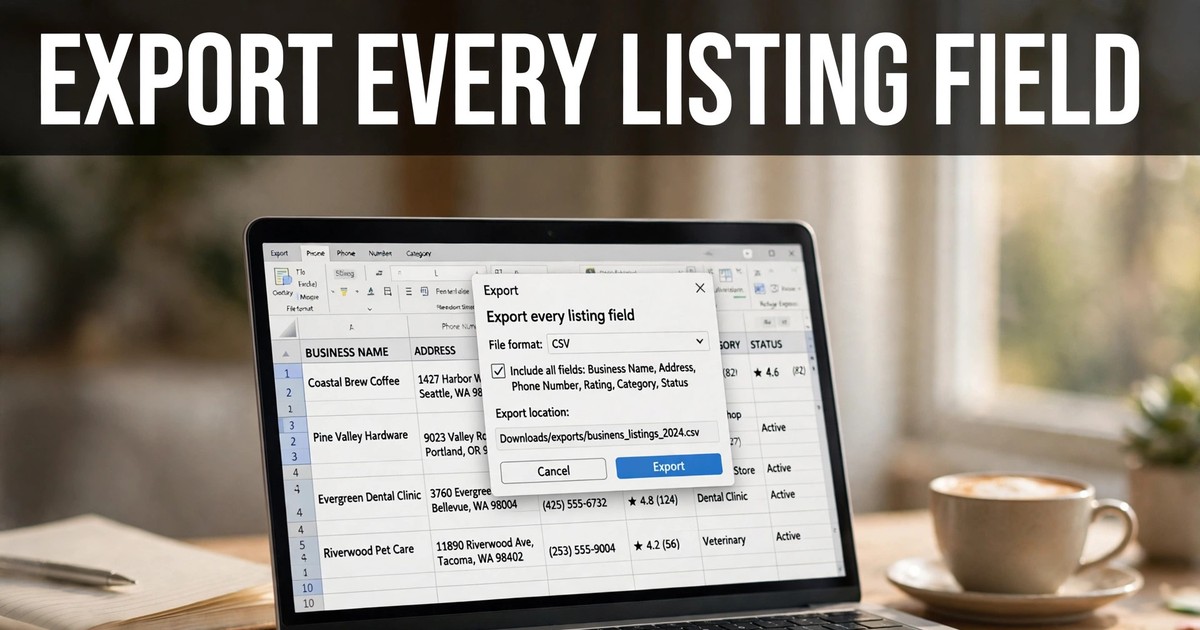
Location details are the fields customers see: business name, address, phone, website, category, hours, and store code. A store code is the ID you assign a location inside Business Profile Manager, and Google uses it to match rows on re-import. Google's own help page tells owners to download the latest location information before making bulk edits. Fields that do not apply show as [NOT APPLICABLE].
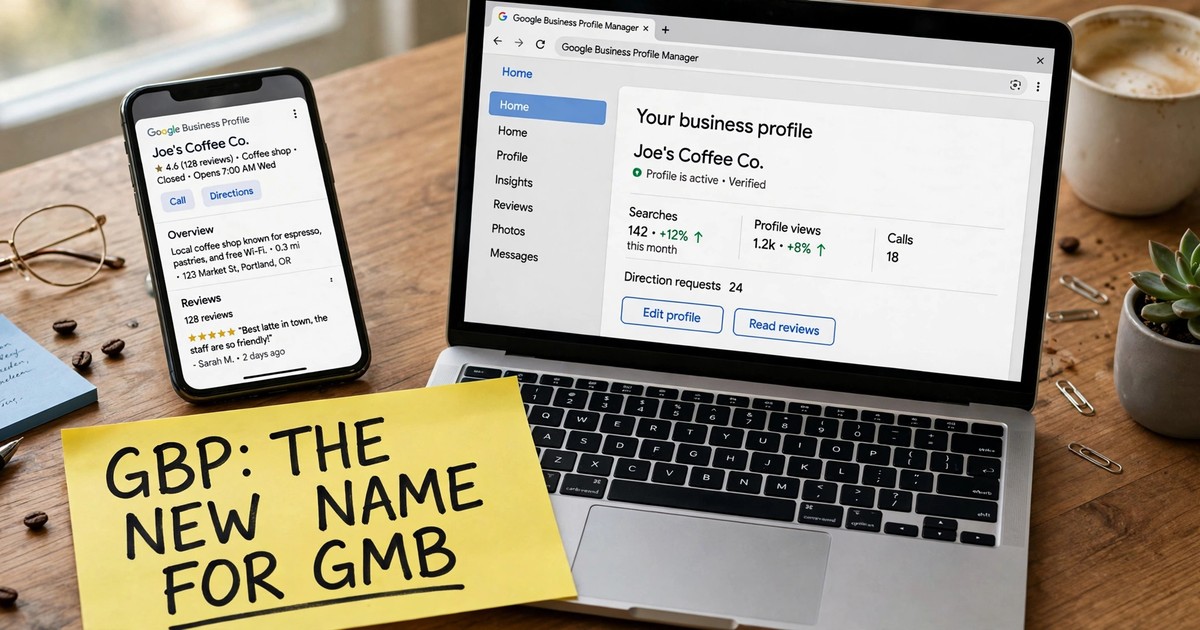
Performance numbers cover what searchers did: views, calls, direction requests, website clicks, and search terms. They download from the Performance report, one profile at a time or in bulk. Reviews are the gap: the dashboard has no export button for them. One naming note: Google renamed Google My Business to Google Business Profile on November 4, 2021, so older guides say GMB where newer ones say GBP, and most searches for google my business export data still use the old name.
How do I download my own locations from Business Profile Manager?
I open Business Profile Manager, tick the listings I want, open Actions, and download the Businesses file.
- I sign in to Business Profile Manager with the account that owns the profiles.
- Next, I open the Businesses tab and tick the listings I want. One tick selects the full set.
- From there, I open Actions, then Download, then Businesses.
- I pick CSV or XLSX. CSV is plain text with values split by commas, and XLSX is the Excel file format. I also choose whether to add photos and Google updates left by others.
- Then I press Download and wait while Google prepares the file, then I download it again from the pop-up.
- Last, I open the sheet and guard two things before any re-import: store codes stay exactly as they are, and I never upload columns with headings and no data under them, since Google's help page warns that empty columns delete existing info on import.
That sheet doubles as my backup and my bulk-edit sheet.
How do I export reviews to Excel when there is no download button?
I use Takeout for a one-off backup, and the API when I need reviews on a schedule. The dashboard itself gives me no download button.
For Takeout, I open Google Takeout, click Deselect all, tick Business Profile, and choose export once with a download link by email. The archive arrives as a ZIP with JSON files, one folder per location. JSON is a structured text format that developers use, and each review sits in nested fields: reviewer name, star rating as a word such as FIVE, comment text, and timestamps. A spreadsheet cannot open that shape cleanly, so I convert the JSON to CSV first, through Excel's data import or a free JSON-to-CSV converter.
Guides disagree on one point, so I check my own archive before I promise a review export to anyone. Some guides describe pulling customer reviews from Takeout, while others say Takeout covers only reviews you wrote yourself.
Developers get a steadier route through Google's Business Profile APIs. An API is a way for software to pull data without opening the dashboard. The Business Profile API reads reviews for locations you manage, with results paged through in batches. Access is not open: Google's developer FAQ says you must request access, requests are reviewed within 14 days, and approved access still only reaches profiles you manage. One limit I keep in mind: the public Places API returns up to 5 reviews per place.
How do I export performance data, and can I schedule it?
I pull performance data from the Performance report, and I schedule repeats when I need monthly numbers.
For one profile, I open the Performance report, pick a date range, and use the download option on each section I need, such as calls, queries, and directions.
For several profiles at once, I tick the profiles in Business Profile Manager, open Actions, then Insights, pick a timeframe, and press Download Report.
Google's own download is manual each time, so for scheduled pulls I use a connector tool. One connector guide I read describes scheduled pulls of locations, reviews lists, and search terms into Sheets: fresh rows on a schedule, no re-downloading by hand. I read the last few days as incomplete, since those numbers arrive a few days late, so I judge a location by weekly trends, not by yesterday's count.
What can I export about competitors?
I can export only what the public listing shows. Google offers no export for profiles I do not own, and no official route reaches inside a competitor's account.
The public fields are the ones a searcher sees: business name, category, address, phone, website, hours, star rating, and review count. A google my business extractor reads those fields from the results page and saves them as rows. A google my business data extractor goes one step further and visits each business website for published emails and social profiles, since Maps listings never show email addresses.
Say you search dentists in Miami. Each row gives you the practice name, address, phone, website, rating, and review count, but nothing about who owns the practice. I save the search term and the export date with every row, so I can trace any row back to the search that found it.
For this leg I use GoLeads Pro, per the vendor: a Chrome extension synced with a web dashboard, a website crawl for publicly listed emails, and an MX check on every address before export. An MX check asks the mail server whether an address can receive mail at all. The vendor reports bounce rates under 3% on verified exports against a 12 to 15% average for purchased lists, and 98% of phone numbers verified. Exports land as CSV, XLSX, or JSON mapped for HubSpot, Salesforce, and Apollo. New accounts start free with 50 leads a day and 300 in total, and paid tiers reach 50,000 and 100,000 leads a month.
The best GMB scraper Chrome extensions roundup compares the field, the Google My Business scraper guide covers the listing side, and the Google Maps lead extractor guide walks through the four stages of a pull: search, capture, crawl, and check. One limit still applies: a scrape returns companies, not named contacts by job title, so it fits local outreach and fails enterprise prospecting by person. The guide on whether scraping Google Maps is legal covers the legal ground, and I read it before a large pull.
Which export route fits my job?
I pick the route from the job, not from habit.
| Route | What you get | Format | Use it when |
|---|---|---|---|
| Business Profile Manager download | Location details for profiles you own | CSV, XLSX | You manage locations and need a backup or a bulk-edit sheet |
| Performance report download | Views, calls, directions, website clicks, searches | Spreadsheet | You report on one profile or compare locations |
| Google Takeout | Profile backup, review data in raw form | ZIP with JSON | You want a full backup and can clean JSON |
| Business Profile APIs | Location, review, and performance data | JSON through code | You run reports on a schedule and have a developer |
| Google My Business extractor | Public listing fields for any business, plus website emails | CSV, XLSX, JSON | You build a prospect list from businesses you do not own |
My pre-export worksheet
I run this worksheet on every export. It stops the two most common failures: a file I cannot trace and a re-import that wipes fields.
- I sign in with the account that owns the profiles, since an account with no access cannot export it.
- I name the file with the export date, so last month's file never gets overwritten by accident.
- The route has to match the data: location sheet for fields, performance report for numbers, Takeout or API for reviews.
- Store codes and empty columns get a check before any re-import, since empty columns delete data on import.
- Reviewer names come off before I share a review file outside my team.
- I save the search term and the date with every prospect row, so I can trace any row back to its search.
What an export never includes
No export route hands me everything. Six gaps show up across the methods.
- Email addresses from listings. Maps listings do not display them.
- Performance data for profiles I do not own.
- Live data. An export freezes the day I run it, so I re-run it before a large campaign.
- API access to someone else's profile. Approved access still only reaches profiles you manage.
- Coordinates for saved places. Takeout exports saved lists with names and links but no address and no coordinates.
- Complete review histories at bulk scale without friction. Bulk pulls now hit rate limits and CAPTCHAs more often.
Frequently asked questions
Can I export data from a Google Business Profile I do not own?
No official route exists. Google's export tools work only for profiles your account manages, and the API follows the same rule. What you can export is the public listing: name, category, address, phone, website, hours, rating, and review count. A google my business extractor collects those fields from Maps results. Private data, performance numbers, and owner details stay out of reach.
Does Google Business Profile have a download button for reviews?
No. The profile dashboard has no download option for reviews, so reading them one by one is the only in-dashboard route. What I do for a file is open Google Takeout, tick Business Profile, export once, and convert the JSON archive to CSV. Teams with a developer can use the Business Profile APIs instead, which read reviews for profiles the account manages.
What format should I export in for Excel or Google Sheets?
Pick XLSX for Excel and CSV for anything else. XLSX opens in Excel with formatting intact, while CSV opens in Excel, Sheets, and almost every CRM without conversion. Google's own bulk download offers both. JSON fits developers only: it carries nested data that a spreadsheet cannot open cleanly, so convert it to CSV before you hand it to a team.
Can I export all my locations at once?
Yes. In Business Profile Manager, open the Businesses tab, tick every listing you want, then open Actions, Download, and Businesses. One spreadsheet covers the full set, in CSV or XLSX, with an option to add photos and Google updates left by others. Check store codes before any re-import, since empty columns delete existing info.
Is it legal to export competitor listing data?
Public business data sits on firm legal ground in the US after recent court rulings, including hiQ Labs v. LinkedIn in 2022, which held that collecting data anyone can view does not break the federal hacking law. Google's terms still bar automated access, so a terms breach can cost you account action even when the law allows the collection. This page is legal information, not legal advice.
Start with the profile you own. Download your locations from Business Profile Manager and check the file against Maps. When you need the same fields for businesses you do not own, open a free GoLeads Pro account from the pricing page, install the extension, and run one search in your market. Fifty leads a day cost nothing and ask for no card. The free GMB lead extractor guide walks through that first run, and the free vs paid page lays out where the free tier ends.