
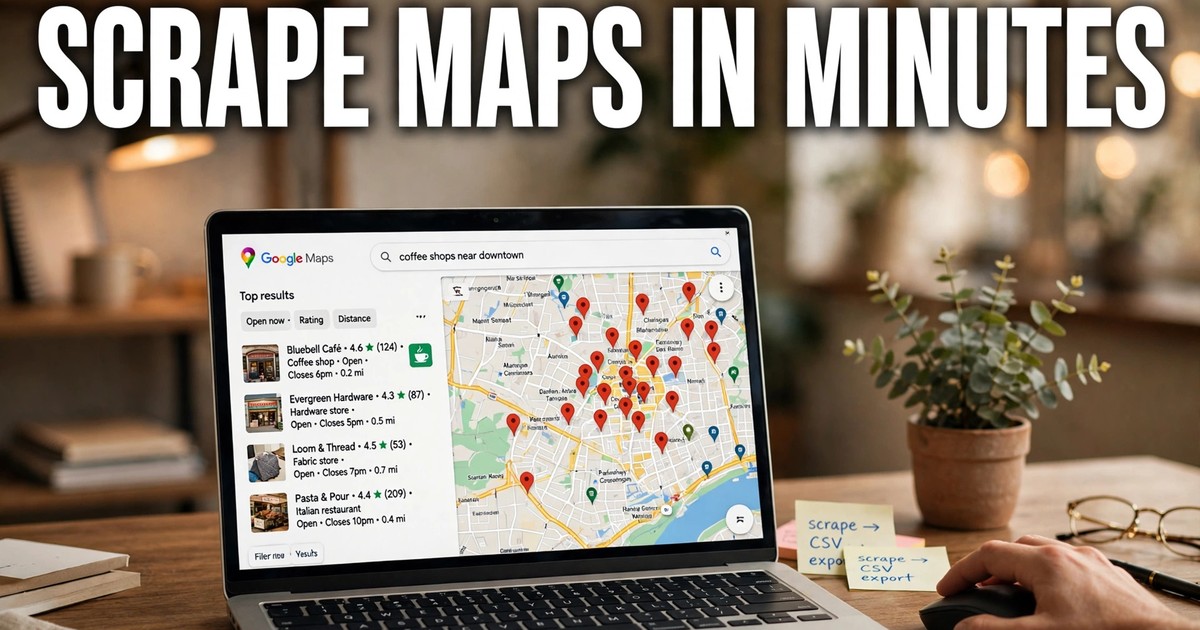
I install a Google Maps scraper extension in Chrome, run a Maps search, and export the list as a spreadsheet. Here is the workflow I use: install, search a trade and a town, scroll to load the full list, run the extraction, and export. GoLeads Pro adds emails from business websites and checks each address before export.
What does a Google Maps scraper extension do?
In my workflow, a Google Maps scraper extension reads the listings on a Maps search page and saves each one as a spreadsheet row. It runs inside my browser, so it sees what I see: names, phone numbers, websites, ratings, and review counts.
Searchers type google map scraper extension and google maps scraper chrome extension for the same product, and I have also seen it called a google maps listing scraper and a map scraper and lead extractor extension. The names differ, but the job stays the same: turn a Maps search into a lead file I can use.
Copying listings by hand shows the cost: forty listings eat a morning, and I still hold no emails, while the extension runs the same pass in minutes.
What I watch for is the second pass. Listings carry no emails, so a tool that stops at the listing hands me a file with no inbox in it. I check whether the tool crawls each business website before I commit. One boundary matters too: it reads public listing data, and it does not log in to a business profile or edit one.
How do I install it?
I install it from the Chrome Web Store, then pin it beside the address bar.
- I open Chrome on a desktop or laptop, where Google's install guide covers extensions and the icon sits beside the address bar.
- I open the GoLeads Pro extension page, select Add to Chrome, then Add extension on the permissions prompt, which Google's guide says to approve only for extensions you trust.
- I pin the icon. If it is not beside the address bar, I open the extensions menu (the puzzle icon) and pin GoLeads Pro.
- I create a free account or sign in. The extension syncs with the web dashboard, so anything I capture lands in one workspace. Signup credits cover 50 leads a day and 300 in total, with no credit card asked for.
Do I need code or a developer account? No. I need a GoLeads Pro account for the dashboard sync, and no code at any point. Two blocks can stop an install: Google's guide notes you cannot add extensions in Incognito mode or as a guest, and a work or school PC may block some extensions. If the Add to Chrome button does nothing, I check those two points first.
How do I set up my first search?
I start with one search and one market.
Say you search dentists in Miami: that is one clear market. Broad searches return thousands of rows, and my free credits (50 a day) run out before I learn anything.
I scroll the results panel to the end before I start. Google Maps loads listings in batches as I scroll, and the extension reads only what has loaded, so an early start exports a partial list. I read twenty results by eye, since Maps labels run broader than trade labels.
I set filters before the run: a rating floor of 4.0 stars, a review-count floor, and a website filter. Rows with a site give me something to audit.
How do I run the extraction?
I click the extension icon on the Maps results page and start the run.
- I click the pinned icon while the results panel is open, and the extension reads the listings on the page.
- I start the extraction and watch records land, with duplicates merged across multi-location scans.
- I let the website crawl run: for each listing with a website, the tool visits the site and reads published emails and social profiles. That second pass is where a google maps lead scraper earns its keep, since listings alone carry no emails.
- I let the checks run before I export. Each email passes an MX check, which asks the mail server whether the mailbox accepts mail, and phone numbers are checked for active status. GoLeads Pro reports bounce rates (returned mail) under 3% on verified exports, against a 12-15% average the company cites for purchased lists, and 98% of phone numbers verified. I read both figures as vendor-reported numbers.
Before I hit run, I check five things:
- Results panel scrolled to the end
- Filters set for rating, reviews, and website
- Credit balance checked
- Export format picked
- One market only
How many businesses does one search return?
One search returns as many listings as Maps loads for that view, so I never quote a fixed number before I scroll.
Maps loads listings in batches as I scroll, and the count depends on the area. A small town search may load every firm in the area; a big city search keeps loading until the panel stops. For a large area, I split the search into one per neighborhood or ZIP code, which keeps each file tight.
If a city search returns far fewer rows than I expect, I scroll again: a short count usually means the panel stopped early.
Does the extension run in the cloud or in my browser?
It runs in my browser, not in the cloud, so I keep the tab open while it works.
The extension reads the page in front of me and stores the capture in the dashboard. That setup has one cost: if I shut the laptop, the job stops. Jobs that continue after I close the browser need a cloud scraper instead, a different product.
The browser route gives me control: I watch results load, adjust the search, and export when the run ends. The run also uses my own Maps session, so I keep the volume human: heavy automated use can trigger CAPTCHAs or limits from Google.
What lands in the export file?
Each row in my file is one business, with the listing fields plus anything the website crawl found.
| Field | Source | Use |
|---|---|---|
| Business name | Maps listing | Mail and calls |
| Category | Maps listing | Sort the file by trade |
| Street address | Maps listing | Mail and territories |
| Phone number | Maps listing, checked | Call the business |
| Website | Maps listing | Site audits |
| Star rating | Maps listing | Filter for quality |
| Review count | Maps listing | Judge staying power |
| Opening hours | Maps listing | Time your calls |
| Email address | Business website, MX-checked | Cold email |
| Social profiles | Business website | Outreach research |
A listing with no website stops at phone and address, and an email appears only where the business publishes one. Generic inboxes like info@ reach the business, not the person who signs, so I treat them as business contacts. The Google My Business scraper guide covers each field in more depth.
How do I get the list into my CRM?
I export CSV, XLSX, or JSON, then I import the file into my CRM, where I track buyers and deals.
If you came here searching for a google map lead extractor extension, this is the part that pays: columns arrive mapped for HubSpot, Salesforce, and Apollo, so my import takes minutes, not an afternoon of column cleanup. I pick CSV for spreadsheets and XLSX for Excel.
I import in this order:
- I download the file and read ten rows by eye against the live listings.
- I map the columns to my CRM fields, tag the batch with the search and the date, then import a small test batch and watch the bounces.
- I keep the rows with no email out of my sending file, and use them for calls or mail instead.
Lists age, so I re-run the search before a large campaign instead of trusting a file from last quarter.
My first-list worksheet
I fill in this worksheet before my first run, and the run takes one sitting instead of three.
| Decide before you run | Your pick |
|---|---|
| Trade and town | |
| Filters | |
| Target row count | |
| Export format | |
| CRM and batch tag | |
| First-send date |
I keep the sheet with the export, so next month I repeat the same search without starting from scratch.
When an extension is the wrong tool
An extension is the wrong tool when I need named people, not businesses.
A scrape returns companies: the business, its phone, its website, its ratings, and any email the business publishes. I do not get the owner's name, a job title, or a direct line to the person who signs contracts. If my sale runs through a named contact, a contact database fits better.
Volume sets a second limit. A browser run needs the results page open while it works, and if I shut the laptop, the job stops. For long pulls across many cities, a dashboard I can open from any machine fits better. Paid plans reach 50,000 and 100,000 leads a month.
Cold outreach rules still govern what I send and to whom. The legal guide walks through the court rulings, Google's terms, GDPR, CCPA, and CAN-SPAM duties, and the roundup lines tools up field by field.
Frequently asked questions
Do I need a paid plan to run my first list?
No. My first runs sit on a free GoLeads Pro account, 50 leads a day and 300 in total, with no credit card at signup. That covers one trade in one town, with room to test the export. I move to a paid plan when volume or the email crawl outgrow the free tier. Paid plans reach 50,000 and 100,000 leads a month. The free vs paid page lays out the split.
Why must I scroll before I run the extension?
Google Maps loads listings in batches as I scroll the results panel. The extension reads the listings on the page, so it can only capture what has already loaded. If I start the run too early, I export a partial list. I scroll to the end of the panel first, wait for the last batch to appear, then start. That scroll takes a short while and saves a second run.
Where do the emails come from?
Google Maps listings show no email addresses, so no extension pulls them from the listing itself. GoLeads Pro visits the website on each listing and reads addresses the business publishes on its contact page, footer, or about page. Each address then passes an MX check that asks the mail server whether the mailbox accepts mail. Listings with no website yield no email, and the row stops at phone and address.
Can I run the extension on a phone?
I run the first extraction on a desktop or laptop. Google's install guide describes adding extensions in Chrome on desktop, and the extension icon sits beside the address bar on a desktop browser. A phone screen also makes the scroll, the filters, and the export review harder. I run the extraction at my desk, then open the exported file on any device.
What if half my rows have no email?
That result is normal when a market holds many businesses with no website or no published address. I use those rows for calls, mail, or walk-in visits instead of cold email, and keep them out of my sending file. For the next run, I add a website filter so the pull only returns businesses with a site to crawl. A smaller file with emails beats a large file my sending tool cannot use.
Open one Maps search today. Create a free GoLeads Pro account, run the extraction on a trade you sell to, and export the list. Fifty leads a day costs nothing, asks for no card, and shows you in one sitting whether Maps data fits.