
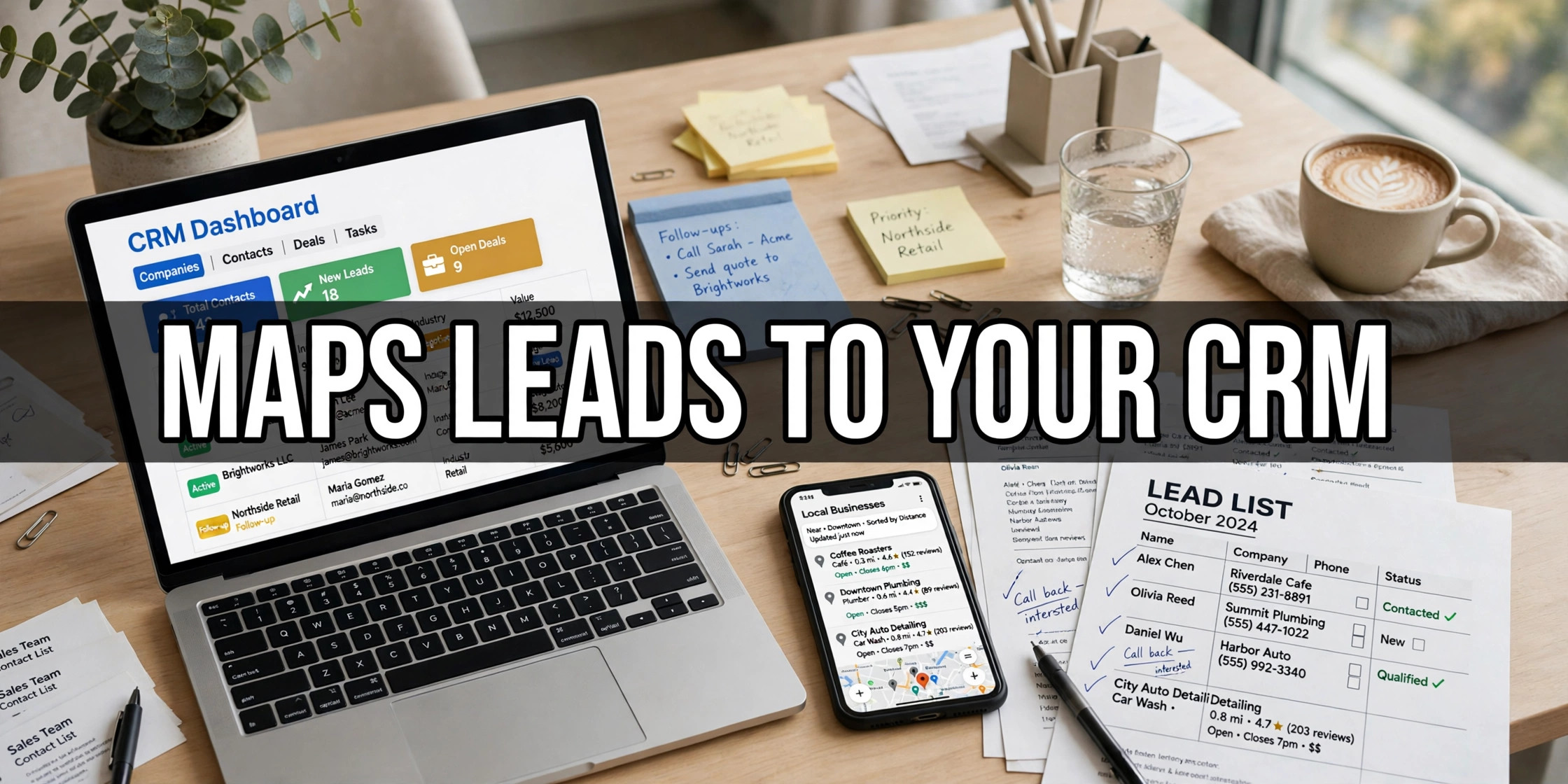
To get Google Maps leads to HubSpot or Salesforce, clean the list first, export it as CSV or XLSX, then import the file and map each column. HubSpot matches contacts by email and companies by domain. Salesforce matches leads by name and email through its Data Import Wizard. There is no live sync from GoLeads Pro, so the file is the bridge.
I used to treat the export as the end of the job: pull a list, download the CSV, drag it into HubSpot. A week later I found three copies of one plumbing firm and a batch with no owner. A bad list never reached the right person.
This post walks the import itself for HubSpot, Salesforce, and Pipedrive. It pairs with our guide to cleaning and deduping a Google Maps lead list: clean first, then import. For the pull, read our guide to extracting leads from Google Maps.
Is there a direct sync from Google Maps to your CRM?
No, not from GoLeads Pro. GoLeads Pro claims no native connector for any CRM, so the route is export plus your CRM own import. GoLeads Pro exports CSV, XLSX, and JSON mapped for HubSpot, Salesforce, Apollo, Pipedrive, and Zoho, per the vendor.
The rival guides name the CRM and stop there. Purshology lists a Step 5 called Export to CRM or Cold Email Tool, naming HubSpot, Zoho, Pipedrive, Instantly, SmartLead, and Apollo, in its March 19, 2026 guide. Presto lists HubSpot, Mailchimp, Zoho CRM, Salesforce, and Sheets as CSV-compatible destinations, and Oppora lists direct sync with HubSpot and Salesforce in its July 1, 2026 roundup. None of them walks the import screen by screen.
Why do you clean the list before you import it?
Your CRM trusts the file you hand it, and it cannot tell that two rows with different spellings are one business. Clean in the sheet, where fixes are cheap; import a dirty file and you pay for the same fixes inside the CRM.
Run the full pass from our clean and dedupe guide before you open the import tool. Remove exact duplicates by phone, then by domain, fix typo domains by hand, and move role addresses such as info@ and support@ to a company email column. Check each website is live, then freeze the file.
Keep three columns in every export: source search, date pulled, batch tag. Map the tag at import, and every reply traces back to its search.
How do you import Google Maps leads into HubSpot?
HubSpot reads CSV, XLSX, and XLS files with one sheet and a header row, per the Warbble import guide. Split the file by object, companies first, then contacts, with the domain on each contact row.
HubSpot matches contacts by email and companies by domain name, per the Warbble guide and HubSpot community answers. A row with an existing email updates that contact; a row with no email has nothing to match on, so HubSpot creates a new contact every time. That is the biggest cause of duplicates in a Maps import.
Map business name to Company Name, website to Company Domain Name with the bare domain only, email to Email, and phone to Phone Number, with the address in its own columns. Rating and review count go to custom properties; HubSpot has no built-in field for either one. Your tag goes to a custom property or a list.
Watch the shared inbox trap: a contact on info@plumbingfirm.com merges with every other row that carries the same address, per the Warbble guide. Keep shared addresses on the company record only. Turn off automatic company creation when contact emails do not match company domains: a Gmail contact against a dot com site builds the wrong company, per the IV-Lead import guide. Test-import 10 rows and check three records first.
How do you import Google Maps leads into Salesforce?
Salesforce takes Maps leads as Leads, not Contacts: a Lead is a prospect you have not qualified yet, while a Contact belongs to an Account you already know. Most Maps rows are Leads. Put them in as Leads, qualify them, then convert the ones that answer.
Use the Data Import Wizard in Setup. It handles up to 50,000 records in one run, per the MassMailer import guide. For bigger jobs, or for upserts by an outside ID, use Data Loader instead.
Every Lead row needs a Last Name and a Company, per Salesforce help pages. A Maps row has a business name but no person name, so decide the Last Name value before you upload. Use the business name itself, the owner name when the site publishes one, or a plain placeholder you can find later. Do not invent a person name.
Map business name to Company, email to Email, phone to Phone, and website to Website, with the address in its own columns. Rating and review count go to custom fields. Your tag goes to Lead Source, or to a Batch Tag custom field. Set Lead Owner in the sheet before the upload.
Pick Add New and Update Existing when rows may already live in Salesforce. Most teams pick Add New Records without thinking, and that choice is how duplicates get created, per the MassMailer guide. The Wizard matches rows by name, email, or Salesforce ID, per the same guide, so match by email wherever you have one. Check your duplicate rules first: Block stops the duplicate row, Alert only warns you. Test-import 10 to 15 rows and check that a known row updated instead of doubling, per the MassMailer guide.
How do you import Google Maps leads into Pipedrive?
Pipedrive imports from a spreadsheet, and one file can create Persons, Organizations, and Deals in a single run, per the SpreadFix import guide. A Person is your contact and an Organization is the company. Map business name to Organization Name and contact name to Person Name, and leave Deal columns unmapped when you only want contacts: a mapped Deal Title creates a deal on every row.
Pipedrive offers to merge duplicates at every import, per Pipedrive support pages. For a Person it checks organization, phone, and email, and merges on any one match. For an Organization it checks name plus address, so two firms with one name stay separate when their addresses differ.
That merge step still misses the row with no email and no phone: a Person with a name and nothing else has no match value, so Pipedrive creates a fresh record each time. Trim every email, lowercase it, and remove duplicate emails inside the file before you upload, per the SpreadFix guide. A trailing space hides the match, and two rows with one email become two Persons that need a manual merge. Map the rest this way: address to Organization Address, website to Organization Website, email to Person Email, phone to Person Phone, rating and review count to custom fields, and tag to a custom field. Each contact can have only one owner, per Pipedrive support pages, so settle ownership in the sheet and test-import 10 rows first.
HubSpot, Salesforce, and Pipedrive: how the imports compare
The three CRMs ask for the same file and treat it in different ways.
| Step | HubSpot | Salesforce | Pipedrive |
|---|---|---|---|
| Record type | Companies, then Contacts | Leads, then convert | Persons to Organizations |
| File format | CSV, XLSX, XLS | CSV through the Wizard | CSV or Excel under 50 MB |
| Contact match | Email address | Name and email, or ID | Name plus org, phone, email |
| Company match | Company domain name | Account name on convert | Org name plus address |
| Row with no email | New contact each time | Matches by name only | No match value, fresh Person |
| Owner | Contact Owner column | Lead Owner column | One owner per contact |
| Test batch | 10 rows, check three records | 10 to 15 rows, check the match | 10 rows, check three |
HubSpot punishes a missing email, Salesforce a missing Last Name, Pipedrive a missing address. Build the file for the match your CRM actually uses.
A worked example: dentists in Miami, mapped field by field
Say you pulled dentists in Miami with the GoLeads Pro extension, cleaned the file with our clean and dedupe guide, and now hold a CSV with business name, phone, website, address, rating, review count, and email. Say the file holds 120 rows and you work in HubSpot. I made those counts up as a teaching sample only.
- Split the file into a companies file and a contacts file, each with domain, source search, and batch tag.
- Strip each website to the bare domain in both files.
- Move shared inboxes (info@, office@, contact@) off the contacts file.
- Set the owner column now, by town or trade slice.
- Create the custom properties first.
- Import companies first, then contacts, with the domain on the contact rows.
- Open three companies and three contacts and check the domain, phone, tag, and company link.
- Run Manage Duplicates for companies, then contacts, and fix what it finds.
Through Salesforce, two steps change: Last Name needs a value on every row, and Company takes the business name. Through Pipedrive, one step changes: Organization Address has to be filled.
What breaks on import, and how you spot it
Free-mail domains break company matching: a contact on Gmail or Yahoo has no company domain, so HubSpot auto-creation builds the wrong company when left on, per the IV-Lead import guide. Turn the auto rule off for that batch.
Missing websites break the company match too: with no domain, HubSpot matches by name alone and Pipedrive by name plus address. Fill the address column, or the import merges two firms that share a name.
Duplicate companies break reporting: two records for one firm split the contacts between them, and the Warbble guide notes that duplicate company records break contact-to-company links.
Blank owner columns break follow-up: a record with no owner sits in nobody queue, where leads go stale. Set the owner in the sheet. Mail rules still bind the list: in the United States, the CAN-SPAM Act requires a clear opt-out route in each commercial message and an opt-out honored within 10 business days, per the FTC guide.

What if you want the import to run on its own?
GoLeads Pro has no native sync, so an automatic route needs a bridge tool: Zapier or Make can push rows from a new export into HubSpot or Salesforce field by field. Our n8n workflow guide documents the same bridge pattern, and the mapping rules in this post still apply.
Use the bridge only after the manual import works: a bridge pushing a dirty file on a schedule pushes duplicates on a schedule. Run three manual imports first, then automate the mapping you trust. For the export side, read our guide to exporting Google My Business data.
Copy this checklist before you import
- Clean and dedupe the file first, then freeze it.
- Split HubSpot files by object: companies first, then contacts.
- Strip every website down to the bare domain.
- Move shared inboxes to the company record only.
- Create custom properties for rating, review count, and tag.
- Pick Add New and Update Existing in Salesforce when rows may already exist.
- Test-import 10 rows and open three records before the full run.
- Run the duplicate tool right after import, then check for empty owners.
The import is not a download, it is a mapping job, and the mapping decides what the CRM believes about every row.
Frequently asked questions
How do I get Google Maps leads into HubSpot?
Clean the list first, export it as CSV or XLSX, then import companies, then contacts. Map business name to Company Name, website to Company Domain Name, and email to Email. HubSpot matches contacts by email and companies by domain, so rows with no email create new contacts each time.
How do I import Google Maps leads into Salesforce?
Import them as Leads through the Data Import Wizard, which handles 50,000 records per run. Map business name to Company, email to Email, and phone to Phone. Every Lead needs a Last Name and a Company, so decide what fills Last Name first. Pick Add New and Update Existing when rows may already exist.
Can I import Google Maps leads into Pipedrive?
Yes. Pipedrive imports CSV or Excel files under 50 MB and creates Persons, Organizations, and Deals from one file. Map business name to Organization Name and contact name to Person Name, and leave Deal columns unmapped. Pipedrive offers to merge duplicates by organization, phone, or email.
Does GoLeads Pro sync directly with HubSpot or Salesforce?
No. GoLeads Pro claims no native connector for any CRM. The route is CSV, XLSX, or JSON export, mapped for HubSpot, Salesforce, Apollo, Pipedrive, and Zoho, per the vendor, followed by your CRM own import. Zapier, Make, or n8n can bridge the gap.
What fields should I map when importing Maps leads?
Map business name to company, website to domain, email to email, phone to phone, and address to address, with city, state, and postal code in separate columns. Put rating, review count, source search, and batch tag in custom fields you create first, and set the owner column before you upload.
Why did my import create duplicate contacts?
The usual cause is a missing match value. HubSpot matches contacts by email, so a row with no email always creates a new contact. Pipedrive matches by organization, phone, or email, and Salesforce by name and email. Dedupe by phone, then by domain, and test-import 10 rows first.
What do I do with leads that have no email address?
Keep them out of the contact import. Put shared inboxes on the company record only, and send no-email rows to a call pile. A row with a good phone and no email is still a lead, but importing it with a blank email duplicates it every time you rerun the file.
Should I clean my lead list before importing it to a CRM?
Yes, always. Remove exact duplicates by phone, then by domain, fix typo domains, drop dead websites, and move role addresses to the company record. Cleaning in the sheet costs minutes; inside the CRM it costs hours, and split company records break reporting.
Run your next pull through the full chain: clean it with our clean and dedupe guide, export it from GoLeads Pro, and test-import 10 rows today. The free tier gives 50 leads a day, 300 total, with no credit card, per the vendor.