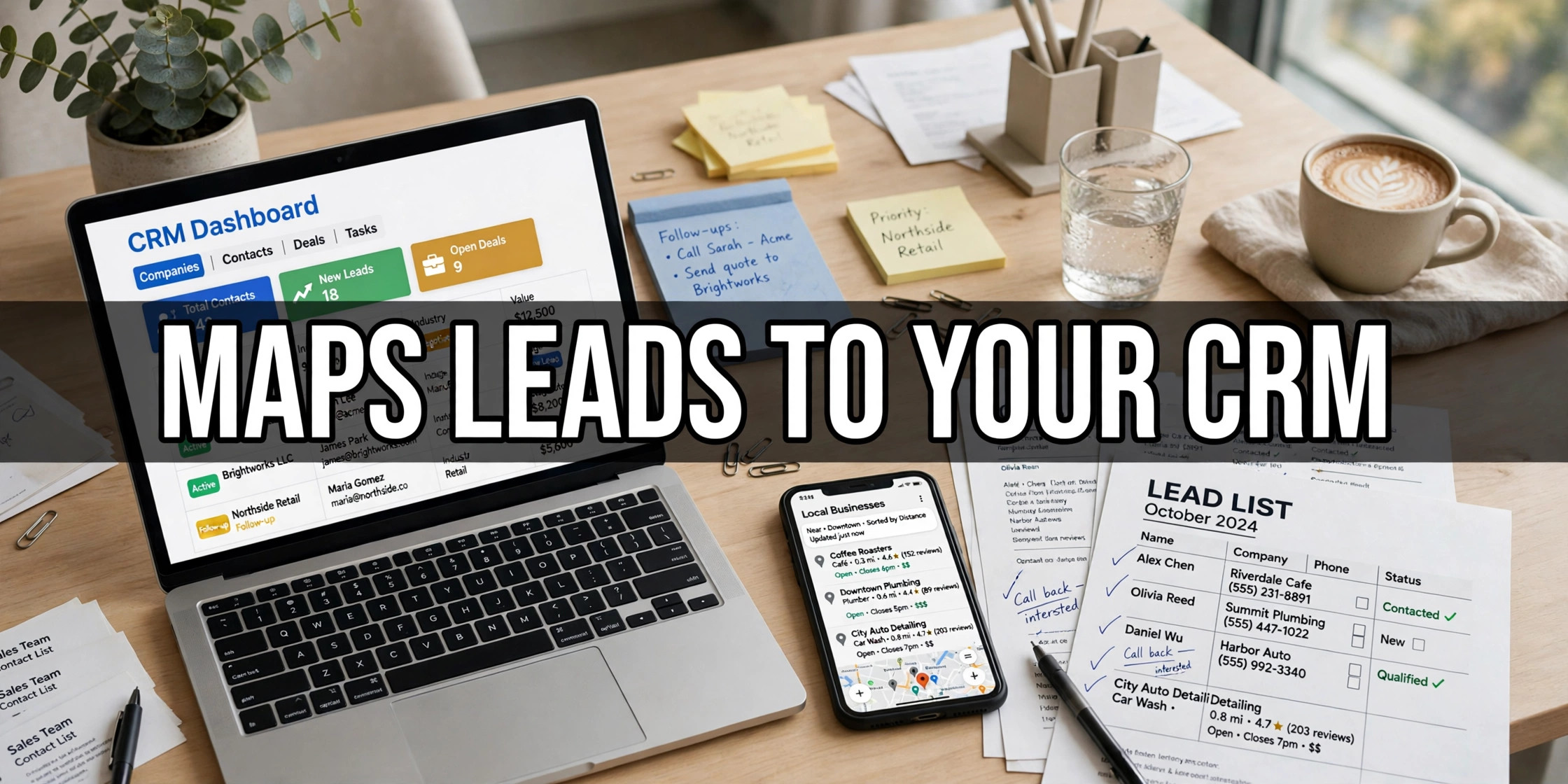

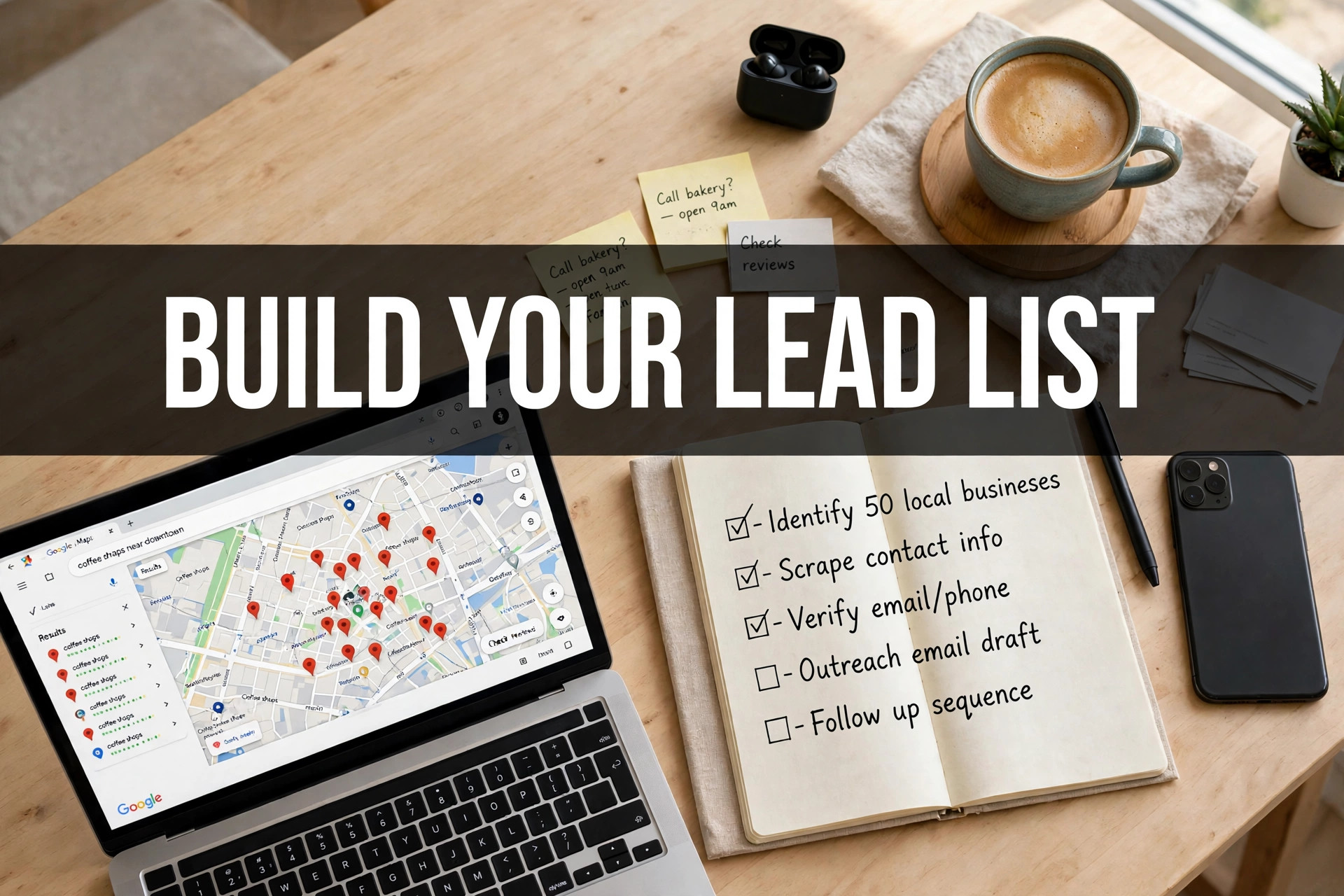
To build a lead list from Google Maps, search one trade in one area, filter by category and fit, pull the listings into a sheet, verify each email and phone, then export the clean rows to your CRM. One search tops out near 120 results, so split big areas into smaller searches and remove duplicates before you send anything.
My first Maps list looked like a win: 400 rows and a plan to mail every one by Friday. By Monday the row count had lied to me. Half the rows had no email, a dozen phones rang dead, and three businesses had shut months earlier. I had built a pile of names, not a list I could work.
A lead list earns its name in the steps after the pull: search, filter, extract, verify, export, CRM. This post walks the whole build in that order, with a worked example and a checklist you can copy. For the pull itself, read our guide to extracting leads from Google Maps, and for the phone route, read our cold-calling list guide.
What does a finished lead list actually hold?
A finished list is a sheet where every row can take a next step. Each row holds a business name, a category, a phone, a website, a street address, a rating, a review count, a contact route, and a status. The contact route is the part most first lists miss: a row with no email and no working phone is a dead row.
You also need two columns most people skip: source search and date pulled. The first tells you which query found the row, so you can rerun it. The second tells you how stale the row is. A list with no dates goes stale in silence.
Start with the buyer
I open a blank sheet before I open Maps. It asks six things, and I fill them in plain words. Copy this sheet before your next pull.
- Trade: one trade, written the way Maps labels it.
- Area: one town or neighborhood, not a whole metro.
- Fit rule: what makes a row worth keeping.
- Cut rule: what gets a row dropped on sight.
- Contact route: email first, phone first, or either.
- CRM tag: one tag for this batch.
Say you sell web design to dental clinics. Your trade is Dentist, your area is Miami Beach, your fit rule is a clinic with a live website and at least 20 reviews, your cut rule drops clinics with no website and no phone, your contact route is email first, and your tag is dentist-miami-beach. Six lines give the search edges. Without them, Maps hands you everything and you keep too much of it.
How do you search Maps so the list stays tight?
Type the trade and the area the way a customer would: dentists in Miami Beach, plumbers in Austin TX. Maps matches your words to its own category labels, so plain trade words beat clever ones. A search for dentist pulls the category.
Then use the filters Maps gives you. The rating filter drops the thinnest listings, and the open now filter drops listings that may have closed without leaving the index. Check the category line under each business name, since Maps often shows a near neighbor of your trade beside a true match.
I run one trade in one area per search, and I write each search down before I run it. Five tight searches beat one wide search, because each one returns rows that already share a tag and a message angle.
What do you do about the near-120 search cap?
One Maps search tops out near 120 results. Wameq states the same cap in its 2026 guide, and LocalPipe puts it at 100 to 120 results. The cap sits in the Maps interface, so no tool lifts it from one search.
Split instead. Cut a metro into neighborhoods, ZIP codes, or smaller trade slices. Dentists in Miami becomes dentists in Coral Gables and dentists in Little Havana. Each slice is its own search with its own tag, and the slices add up past what one search can hold.
Merge the slices into one sheet, then remove duplicates. Phone number is the steadiest match, with website domain as the backup. Two rows with one phone are one business, even when the names differ.
How do you pull the listings out cleanly?
You can copy rows by hand, and for a test batch of 20 that is fine. Past that, hand copying turns slow and sloppy. I have pasted the wrong phone into the wrong row.
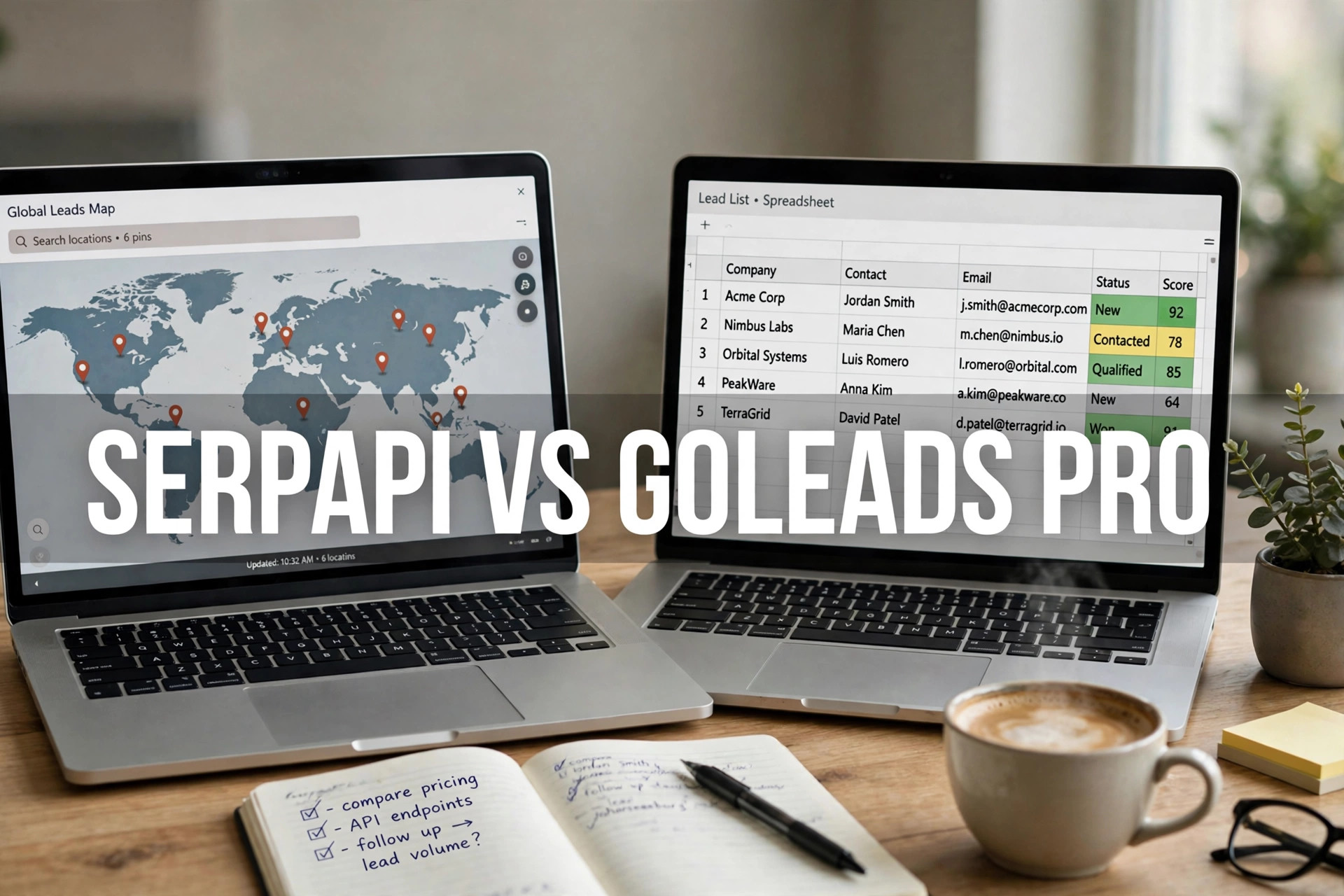
A Chrome extension that reads the Maps results page pulls the same fields in one pass. GoLeads Pro is a Chrome extension plus a web dashboard, and it pulls Maps listings into an export you can open in a sheet.
Check the pull against Maps before you trust it. Open five rows at random, compare the phone and website with the live listing, and fix any mismatch at the source.
Which fields do you keep, and which do you cut?
Not every field Maps shows earns a column. Keep the fields that decide the next step, and cut the rest.
| Field | Keep or cut | Why |
|---|---|---|
| Business name | Keep | For the greeting |
| Category | Keep | It proves the trade match |
| Phone | Keep | Call route and dedupe match |
| Website | Keep | Check it live before you mail |
| Street address | Keep | It places the row |
| Rating | Keep | It sorts strong from thin |
| Review count | Keep | It shows the business is active |
| Keep when found | Mail route, found on the site crawl | |
| Opening hours | Cut | It rarely changes a decision |
| Maps URL | Keep | It opens the live listing |
If a column never changes a decision, cut it.
How do you verify a row before it makes the list?
Verification turns a pull into a list. I run four checks, and a row must pass all four.
- Website live: open the site. A dead site drops the row.
- Phone real: the number on the listing matches the number on the site.
- Email checked: run an MX check. An MX check proves the domain can receive mail, per Axvoid Tools, and it does not prove a named person still holds a role. Read our guide to finding emails from Google Maps for the crawl.
- Role fresh: for a named address, check the name against a live team page or bio. Our accuracy guide explains why an MX check alone cannot prove a current role.
Rows that fail go in a separate pile, not in the trash. A no-email row with a good phone is a call row. A row with a dead site and a dead phone leaves the list.
A worked example: dentists in Miami
Say you search dentists in Miami with the GoLeads Pro extension. Run the search in Maps, pull the listings, and open the dashboard export as a CSV. Do not send yet. Build first.
- Split the city: run dentists in Coral Gables, dentists in Little Havana, and pediatric dentists in Miami, and tag each row with its search.
- Merge and dedupe: combine the three exports and remove duplicates by phone.
- Filter by fit: keep clinics with a live website and at least 20 reviews.
- Verify: MX-check every email, open each site, and drop rows where the site is dead.
- Export and import: export the CSV and import with the tag dentist-miami.
Say the three searches return 120 rows each, and the merge leaves 240 rows after dedupe. Say the fit filter keeps 150, and verification keeps 120. I made those counts up as a teaching sample only, not a market figure. Each step shrinks the list, and each smaller list is worth more than the bigger one.
How do you get the list into your CRM?
Export from the dashboard in the format your CRM reads best. GoLeads Pro exports CSV, XLSX, and JSON mapped for HubSpot, Salesforce, Apollo, Pipedrive, and Zoho, per the vendor. Pick CSV for a first import, since every CRM reads it and you can check the columns in a sheet first.
Map the columns before you import: business name to company, email to email, phone to phone, website to website, and your tag to a tag field. Test-import 10 rows first, open three imported records, and check that the phone, email, and tag landed in the right fields. Then import the rest.
GoLeads Pro claims no native connector for any CRM, so the route is export plus your CRM own import, not a live sync. Your CRM holds the master copy after import, and the sheet stays your backup. For a full export walkthrough, read our guide to exporting Google My Business data.
Mistakes I made, and the fix for each one
I made each mistake below at least once.
Mistake one: I searched a whole city in one query
I split by neighborhood now and tag each row with its search.
Mistake two: I kept every row the pull returned
I run a fit rule and a cut rule before verification, and the sheet shrinks to rows I can work.
Mistake three: I mailed rows I had never verified
I MX-check every email and open every site first. An unchecked row costs more in bounces and dead calls than the check costs.
Mistake four: I imported into the CRM with no tag
Every batch gets one tag at import, so I can trace a reply back to its search.
Mistake five: I treated the export as the finish line
The export is the middle. The list earns its keep when the first calls and mails go out.
Where this build breaks down
First, Maps listings go stale. A business can close, move, or change its phone while the listing still shows the old detail, so a list from last quarter needs a fresh check before you mail it again.
Second, Google terms prohibit automated extraction of Maps content, as Wameq notes in its 2026 guide, and Google enforces that with blocks and rate limits. Collect only published business data, keep the pace human, and use the official Places API when you need programmatic access.
Third, mail rules still bind the list once it leaves Maps. In the United States, the CAN-SPAM Act requires a clear opt-out route in each commercial message and an opt-out honored within 10 business days, per the FTC guide. Mail only published addresses, honor every opt-out at once, and never fill a blank slot with a guessed address.

Copy this checklist before you send
- Write your build sheet before you open Maps.
- Search one trade in one area per search.
- Split big areas by neighborhood, ZIP, or trade slice.
- Merge slices and dedupe by phone, then website.
- Cut rows that fail your fit rule before you verify.
- MX-check every email and open every site.
- Check each named person against a live team page.
- Export CSV and test-import 10 rows.
- Tag the batch at import.
- Honor every opt-out at once.
Share this line with your team: a lead list is not a pile of names, it is a set of rows that can each take a next step.
Frequently asked questions
How do I build a lead list from Google Maps for free?
Run one trade in one area by hand, copy the name, phone, website, rating, and review count into a sheet, then verify each row. A Chrome extension speeds up the same pull. GoLeads Pro gives 50 free leads a day, 300 total, with no credit card, per the vendor.
How many leads can one Google Maps search return?
One Maps search tops out near 120 results. Wameq states the same cap in its 2026 guide, and LocalPipe puts it at 100 to 120 results. Split a big area into neighborhoods, ZIP codes, or smaller trade slices, run one search per slice, then merge and dedupe by phone.
What fields should a Google Maps lead list include?
Each row should hold a business name, a category, a phone, a website, a street address, a rating, a review count, a contact route, and a status. Add a source search and a date pulled column, so you can rerun the search and judge how stale each row is. Cut any column that never changes a decision.
How do I verify Google Maps leads before outreach?
Open the website to check it is live, match the phone on the listing with the phone on the site, and run an MX check on each email. An MX check proves the domain can receive mail, per Axvoid Tools, and it does not prove a named person still holds a role. Check each name against a live team page.
How do I export Google Maps leads to my CRM?
Export CSV, XLSX, or JSON from the dashboard, mapped for HubSpot, Salesforce, Apollo, Pipedrive, and Zoho, per the vendor. Pick CSV for a first import, map business name to company and your tag to a tag field, then test-import 10 rows and check three records.
Should I email or call a Google Maps lead first?
Email first when your offer fits many businesses in one trade and you need a first reply from any staff member. Call first when you need a named person who decides and the business publishes no named address. A short call can earn a named address.
How do I keep a lead list clean over time?
Stamp every row with its date pulled, recheck the list before each new campaign, and remove duplicates on every merge by phone, then website. Log each reply against its row, move dead rows out, and rerun the source searches when a batch goes stale.
Is it legal to build a lead list from Google Maps?
Google terms prohibit automated extraction of Maps content, as Wameq notes in its 2026 guide, and Google enforces that with blocks and rate limits. Collect only published business data at a human pace, and use the official Places API for programmatic access. This is general information, not legal advice.
Try the build on your next pull. Pick one trade in one town, run the six-line sheet, and pull your first batch with GoLeads Pro. The free tier gives 50 leads a day, 300 total, with no credit card, per the vendor.