
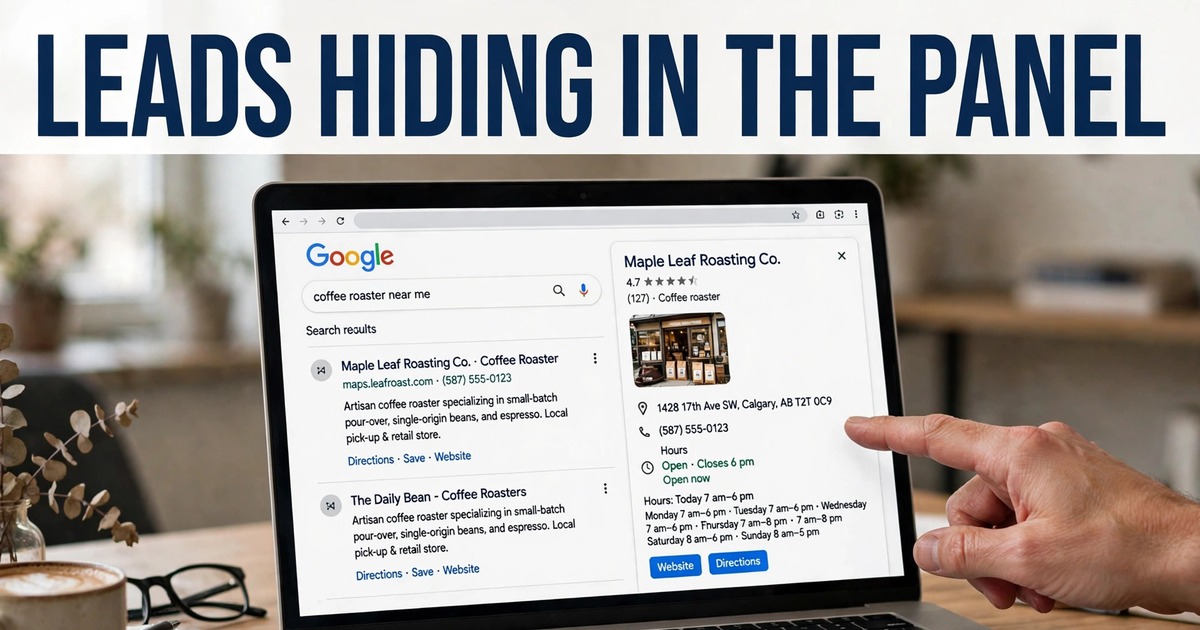
I read a Google Knowledge Panel as a lead record. It puts a business name, phone number, address, website, hours, rating and review count in one box beside Search results. I record the fields, visit the linked website for an email address, and check the address before outreach. The panel gives depth on one business at a time.
What is a Google Knowledge Panel?
I treat the panel as Google's fact box for one named thing. Search a business name and the box sits right of the results on desktop, or above them on a phone. Google builds it from its Knowledge Graph. That is Google's store of facts about entities, its word for a distinct person, place, company or thing. The facts come from the business website, public directories, review sites and the Google Business Profile. Clearscope notes Google has claimed its Knowledge Graph holds over 500 billion facts about five billion entities. Nobody fills in a panel like a form: Google creates it once it holds enough trusted facts, and the owner can then claim it and suggest corrections. For my lead work, the panel gathers contact facts from three or four pages in one place.
How does a Knowledge Panel differ from a Google Maps listing?
I use the two sources for different jobs. A Maps search starts with a trade and a town and returns a list of businesses that match. A panel search starts with one business name and returns one box about that business. The table below sets out the contrast.
| Point of contrast | Google Maps listing | Knowledge Panel |
|---|---|---|
| Search that triggers it | Trade plus town, such as roofers in Denver | One business name plus a town |
| Businesses per view | Many, as a results list | One, in a single box |
| Depth per business | Name, phone, address, rating, hours | Those fields plus website, photos and social links |
| Source of the facts | Business Profile and Maps data | Knowledge Graph: website, directories, review sites, Business Profile |
| Owner control | Owner edits the profile directly | Owner claims the panel and suggests corrections |
| Best lead use | Bulk list building | Depth research on one named account |
I lean on Maps when I need volume, and I lean on the panel when I need depth on one named account. The companion guide on the Google My Business scraper covers the Maps side in full.
What fields do I pull from a business panel?
I read a panel top to bottom and pull the same fields every time.
- Business name and category. I use both to route the lead.
- Address. I use it to assign territory and check the business sits inside my patch.
- Phone number. I use it for calls or to match the record against my CRM.
- Website link. I open it for the email hunt, since panels do not show email addresses. I read the contact page and footer.
- Opening hours. I note them so a call reaches a person, and flag part-time operations.
- Star rating and review count. I read them as a fast quality check. High review counts point to an established business. Low ratings point to a reputation pitch.
- Photos. I glance at them so I sound informed on a first call.
- Social profile links. LinkedIn, Facebook, Instagram, X and YouTube where the business links them. I take them as a second contact path.
- People also search for. I treat each name in that strip as a fresh prospect in the same trade or town.
- Questions and answers. I read them to learn what buyers ask before they buy.
Not every panel shows every field. A new business may show a thin panel with a name and a phone number only. A large brand may show founders, headquarters and a stock price. I record gaps as gaps and never guess a missing field.
How do I capture panel data into a lead list?
Searchers often type scraper for business leads from Google Knowledge Panel into Google when they want panel data at scale. My honest answer is that panels resist bulk capture. Each panel covers one business, and Google builds it for reading. It does not export. My workflow is manual at the panel step, and I pair it with a Maps tool for volume. Say I am working dentists in Miami.
- I search the business name plus its town. A bare name can pull up a namesake in another city, so I add the town every time.
- I record each field in fixed columns: name, category, address, phone, website, hours, rating, review count.
- I click through to the website and find the published email address on the contact page or footer, and I record the page where I found it.
- I check the email address with an MX check before it reaches my list. GoLeads Pro reports bounce rates under 3% on its verified exports, against a 12 to 15% average the company cites for purchased lists. I read those figures as vendor-reported numbers.
- I note the People also search for names as fresh prospects, then I repeat the pass for each one.
- I export the sheet as CSV and import it into my CRM. GoLeads Pro maps CSV, XLSX and JSON exports to HubSpot, Salesforce and Apollo field layouts. The companion guide on the Google Maps lead extractor covers the bulk version of this workflow, and the free GMB lead extractor guide covers a first free run.
For bulk work, I reverse the order: I pull the town list from Maps first, then I open panels only for the accounts worth a deeper read.
Panel lead capture checklist
I run this checklist on every panel before the record counts as a lead.
- Business name spelled as the panel shows it
- Category recorded
- Address with town and postcode
- Phone number recorded
- Website link recorded
- Email found on the website, with the source page noted
- Email passed an MX check
- Hours recorded, with a note on the best time to call
- Rating and review count recorded
- Social links recorded where the panel shows them
- People also search for names added as fresh prospects
- Source panel URL and capture date recorded
- Duplicate check run against the existing list
A record that misses the email and verification rows still works for a call list. For cold email, I send only from records that clear every row.
Why do some businesses have no panel, and what do I do about wrong panel facts?
This is the question people actually type into Google after the basics. Guides from Essentras and Stackmatix point to three usual reasons a panel never appears: too few independent sources, sources that conflict on name or facts, or confusion with a more notable namesake. A local firm has a fourth route: its panel usually comes from its Business Profile, so I check the profile first. If the profile is thin, unclaimed or inconsistent, the panel stays thin or absent too. When a panel shows a wrong fact, I fix the source before I touch the panel. I correct the website, directory listing or profile Google is reading, then I claim the panel where Google offers the claim link and submit one suggestion per error with a public page that proves the correction. Guides on panel correction stress the same order, and they stress that Google decides. No correction, timing or appearance is guaranteed. I also watch for a panel that vanishes. Panel guides report panels can disappear when sources drift out of sync or Google's confidence drops. When that happens I restore consistency across the sources first. One caution: panel facts are public business facts, and the same outreach rules that govern Maps data govern panel data. The legal guide on this blog covers the court rulings, Google terms, GDPR, CCPA and CAN-SPAM duties in full.
When do I work the panel instead of a Maps scrape?
I work the panel when the account is named before the search starts. Account-based outreach, partner research and competitor checks all fit that shape. The panel hands me its current public facts in one view, plus related businesses around it. I work a Maps scrape when the list comes first and the names come second. New territory, a fresh trade, or a campaign that needs hundreds of records all point to Maps. The roundup of the best GMB scraper Chrome extensions compares the tools for that job. I think of the panel as one pin on a leads map I build myself, one business at a time. Maps fills the map. The panel reads one pin closely. I use each source for the job it fits, and the list stays both wide and deep.
Frequently asked questions
Can you scrape Google Knowledge Panels for leads?
Panels can be scraped, and ScrapeHero publishes a workflow that pulls company details from panels by company name, while Webshare documents the same approach. I still would not build a bulk list this way. Each panel needs one branded search, Google's anti-bot protections slow automated passes, and a Maps pull covers a whole town in the time a panel pass covers a handful. I use panel scraping only for depth on named accounts, and Maps tools for volume.
Does the Knowledge Panel show a business email address?
Panels show a phone number, a website link, an address, hours, ratings and reviews, but no email field appears on a standard local panel. That gap is why my email step runs through the website. I open the site from the panel, read the contact page and footer, and record any address the business publishes there. Then I run an MX check before the address reaches my list.
Is a Knowledge Panel the same as a Google Business Profile?
No. A Business Profile is a listing the owner creates and controls. A Knowledge Panel is a box Google builds from its Knowledge Graph, using the website, directories, review sites and the Business Profile as sources. The two overlap on local businesses, and Google's own help pages say to check the panel on Search to see whether a profile is claimed. I claim the profile to manage local facts, and I claim the panel to suggest corrections.
How do I claim a Knowledge Panel, and can I edit what it shows?
Where Google offers the claim link at the bottom of the panel, I sign in with a Google account tied to the business, select Claim this knowledge panel, and follow the verification steps. Google may ask me to sign in through a profile such as Search Console, YouTube or Facebook, or to supply ID and screenshots. Claiming does not let me edit the panel outright. It opens a channel to suggest corrections, while Google keeps control over what shows.
How do I turn panel data into a CRM-ready list?
I record panel fields in fixed columns: name, category, address, phone, website, hours, rating, review count. I add the email from the business website and the result of an MX check. I drop duplicates against my current list, then export as CSV. GoLeads Pro maps CSV, XLSX and JSON exports to HubSpot, Salesforce and Apollo layouts, so the file imports cleanly. For bulk prospecting, I start from a Maps pull and use panels only for depth on named accounts.
Start with one panel in your own market. Search a business you want as a customer, read its panel, and run the checklist above. If the record holds up, scale the same workflow: claim the free GoLeads Pro credits, 50 leads a day and 300 in total with no credit card, and pull the wider town list from Maps while panels cover your named accounts. Plans sit on the pricing page, and the tool lives on the extension page.